A webshop running on NextChapter that features a well-organized product range and category structure will inherently have a logical product sequence. However, there may be times when you want to influence that order yourself—for instance, if you want newer products to appear at the top, or if you wish to display out-of-stock items but prefer not to list them first due to conversion considerations.
There are two ways to search: 1) via navigation (categories) and 2) via the search bar.
1. Navigation:
When searching for a product via the navigation structure (categories or subcategories), results can be sorted based on:
Date (the date the product was created in the CMS)
- Popularity (number of clicks)
- Price (low to high)
- Price (high to low)
- Title (A–Z)
- Title (Z–A)
Webshop visitors also see these options and can choose their own sorting preference.
However, you can also determine the default sorting factor yourself. Most webshops opt for popularity or date.
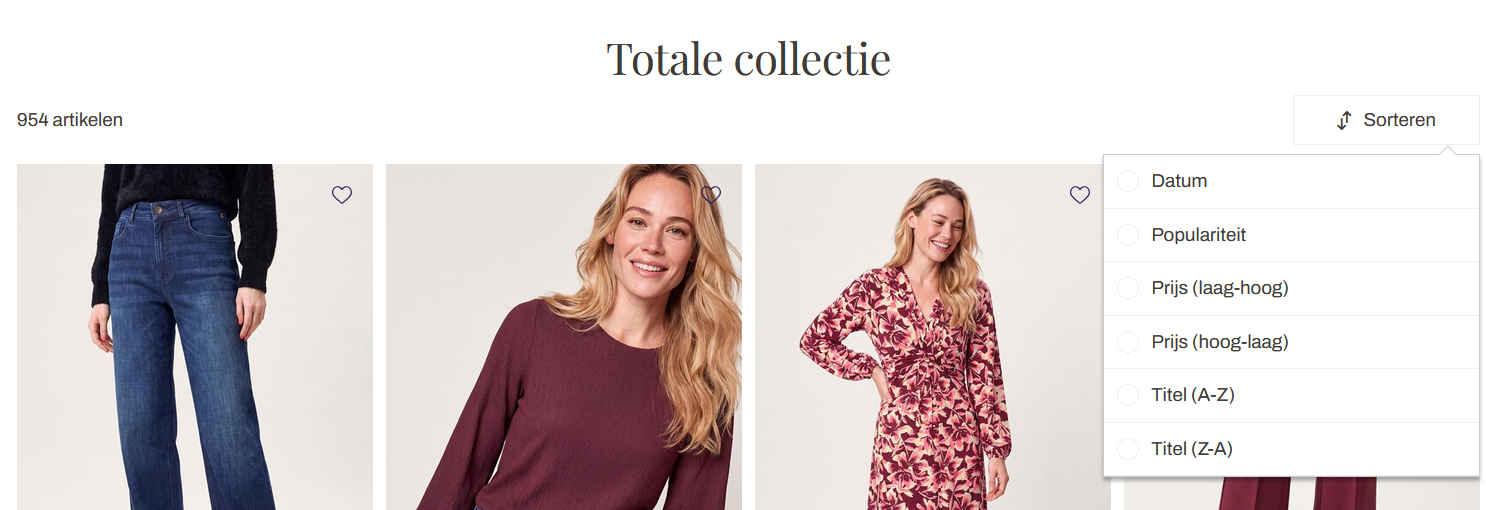
So, there is always one standard option, such as Date.
If you want to exert influence—within this option—you can do so based on properties.
In the CMS:
- Go to Assortment > Products > Properties.
- Select a property you want to boost (either up or down) and open it.
- Important: choose a property that applies to most products. If a property applies to only a few products, you will see significantly less impact. Useful properties could be, for example, "season," "new," or "product group."
- Go to the "Values" tab for that property.
- Here, you have the option to set the priority. By default, all properties and values are set to "Normal." You can manually boost them up or down here.
- Note that it is best to do this for just one property. While it is possible to use multiple properties, you need to carefully consider how the priorities relate to one another (e.g., "High 10" vs. "High 9").
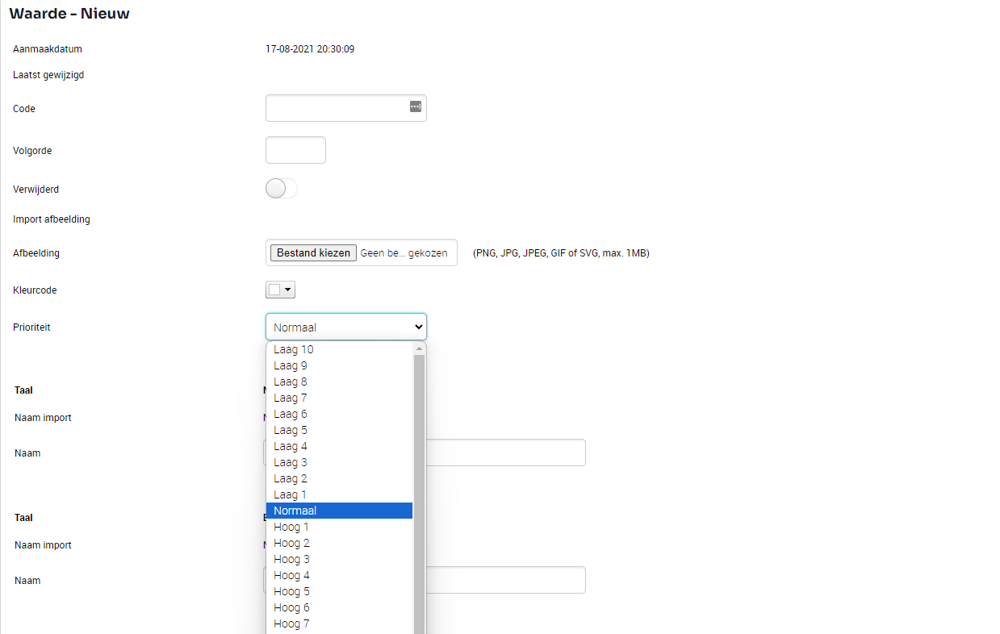
Example:
In this example, we selected the "Category" property in the CMS with the value "Accessories > Hats and caps".
We boosted this using the "high 10" setting.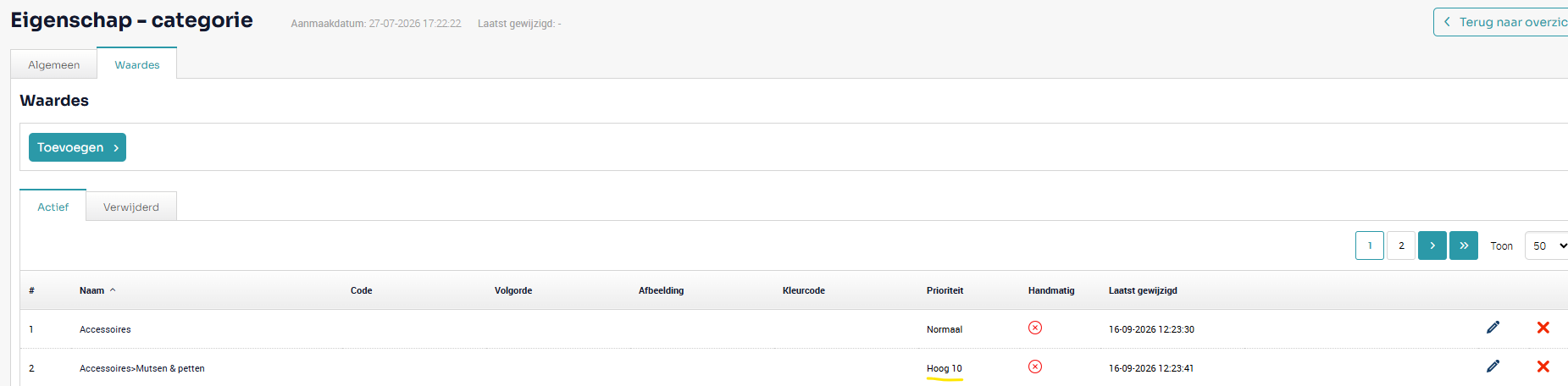
In the Collection category, we first see these results, based on Date and not manipulated:
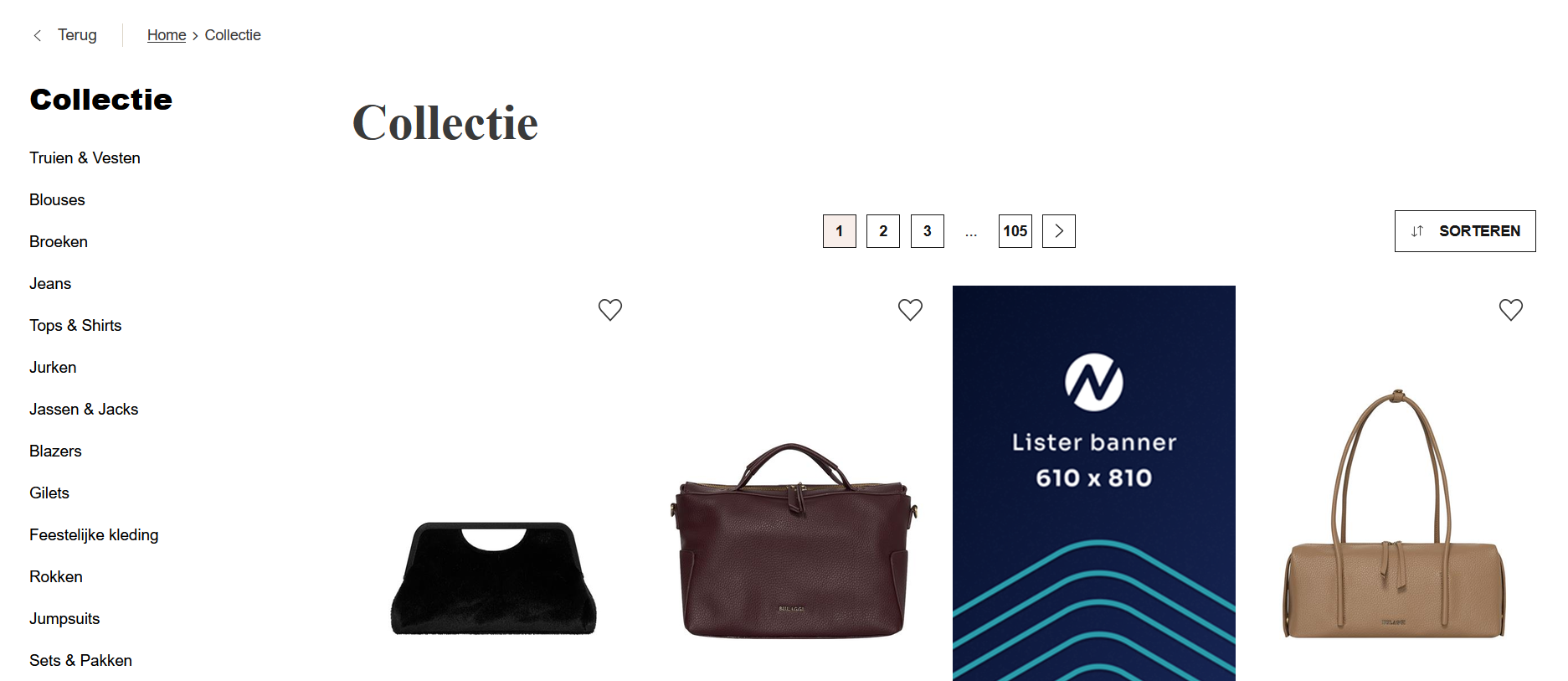
After boosting "Accessories > Hats and caps," we see that one product in this category matches this property value and is displayed right at the top.
The results are still sorted by date, but the manual sorting overrides part of that.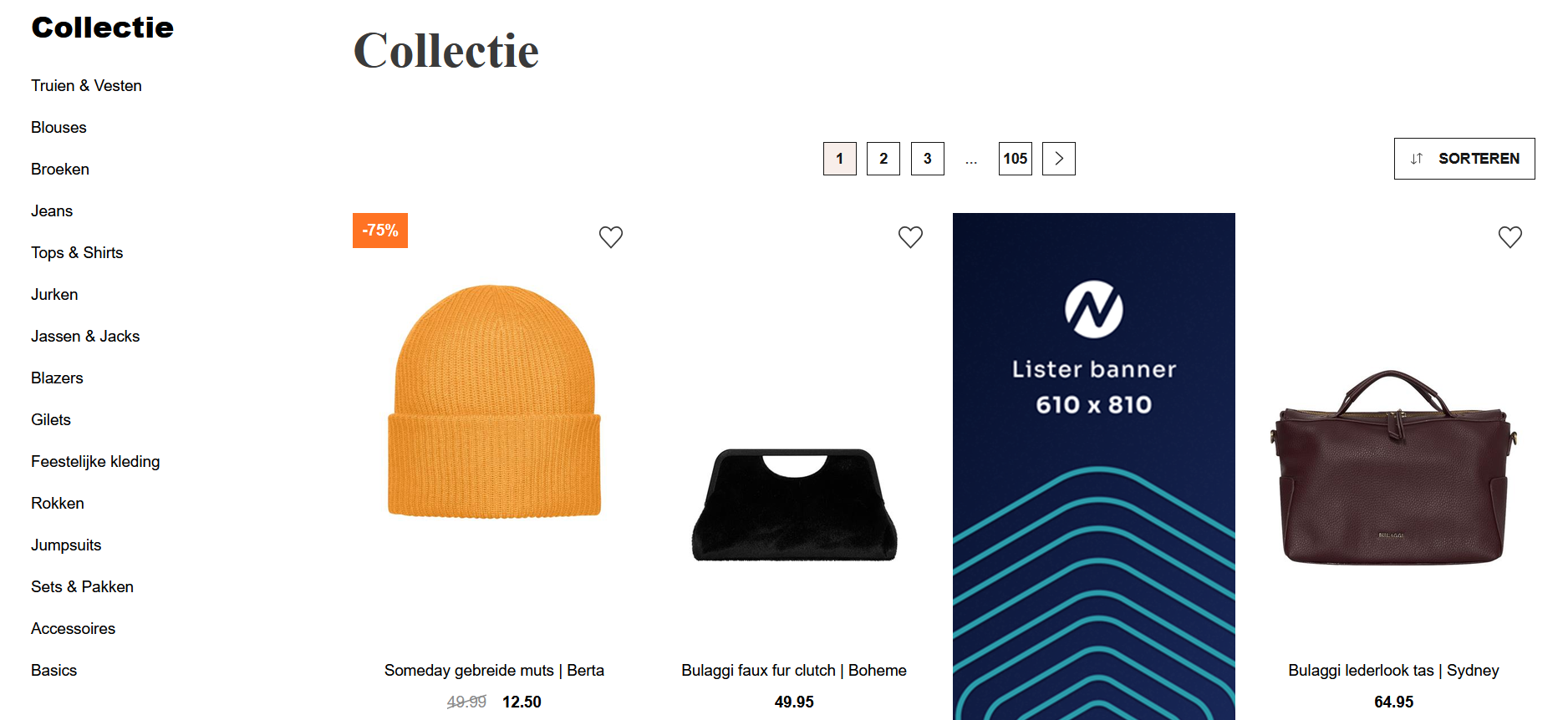
2. Search bar:
Search results from the search bar are displayed differently.
- Autosuggest: when you enter a search term, a dropdown appears with suggestions that best match that term. Searches are performed across categories, properties, EAN codes, or article numbers.
Example of Autosuggest search: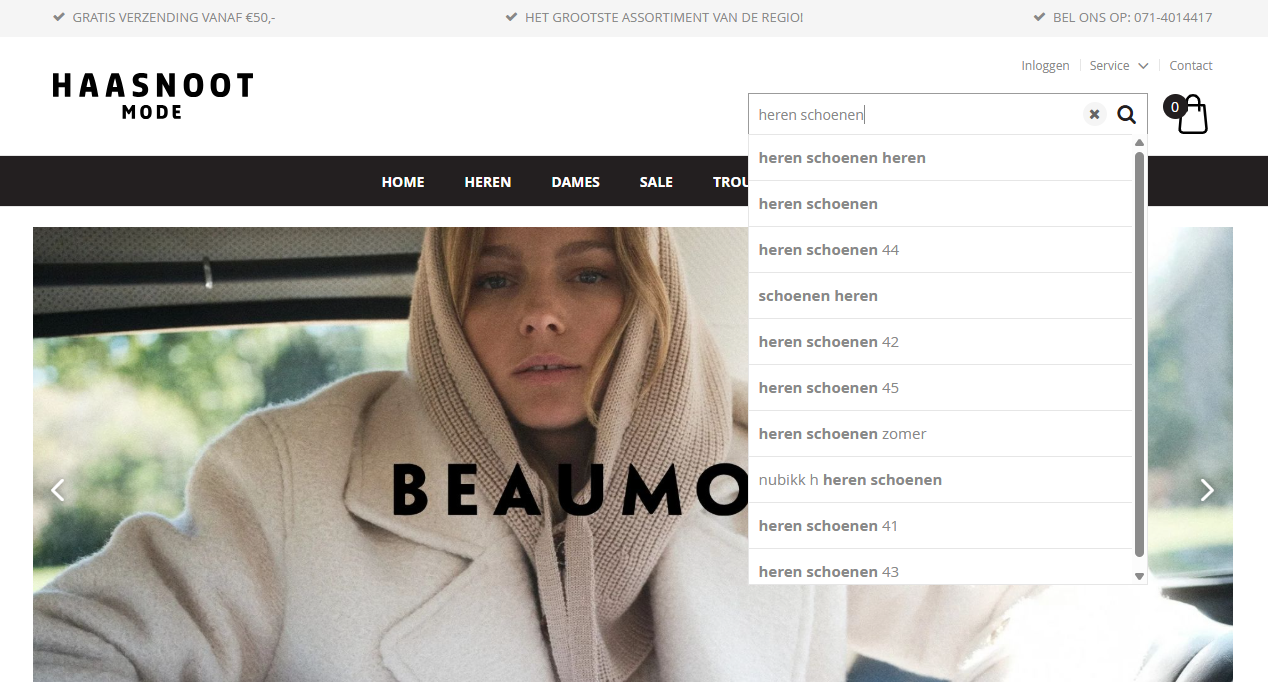
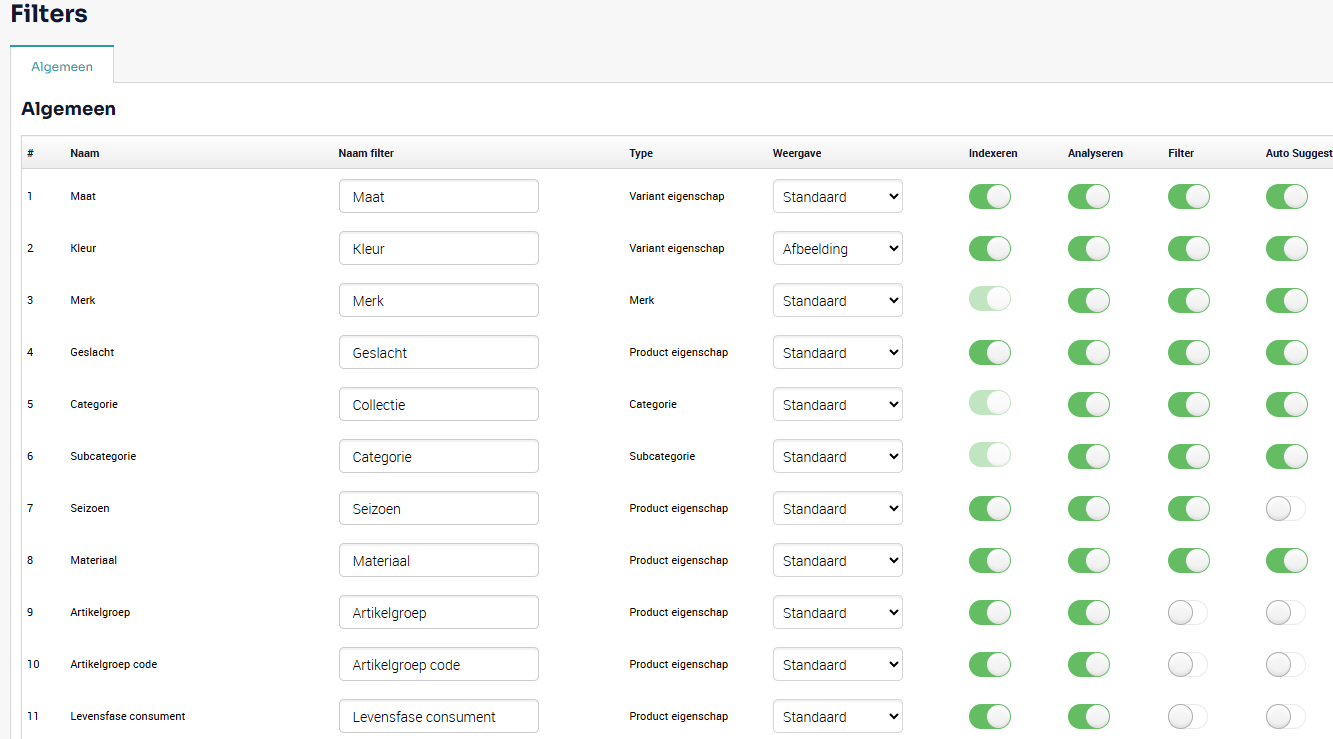
In the CMS, under Search > Filters, you can specify for each property whether you want it included in the autosuggest results.
In the example below, for instance, it makes sense to include categories, brands, and seasons in the autosuggest results, but not the "Article Group Code," as this is primarily a property for internal use that webshop visitors would not recognize.
Autosuggest is an additional service available in the search bar. If it has not yet been activated for you, please contact your representative to have it enabled at no cost.
- Search results (excluding autosuggest): these are the results displayed when you enter a search term and click "search" or press Enter.
These results are determined by a complex technical calculation based on relevance, powered by NextChapter technology.
It is possible to apply minor adjustments to this process—such as boosting or de-prioritizing specific properties, like "Sale" items.
You can contact your representative to arrange this.
Was dit artikel nuttig?
Dat is fantastisch!
Hartelijk dank voor uw beoordeling
Sorry dat we u niet konden helpen
Hartelijk dank voor uw beoordeling
Feedback verzonden
We stellen uw moeite op prijs en zullen proberen het artikel te verbeteren